AI Edge Assistant
This is a powerful, AI support means of performing
- Validations
- Transformations
- Mappings
You run or step though your flow to the point where the edge has data on it.
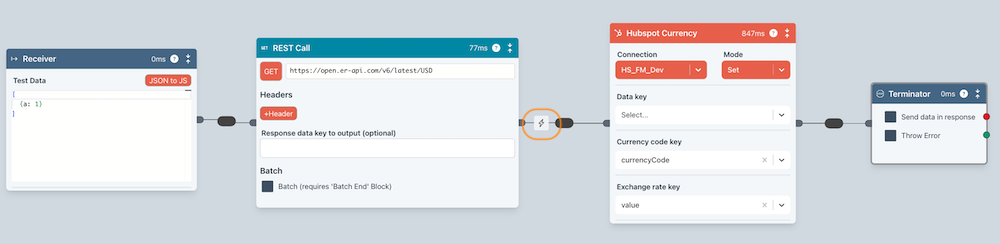
You then click on the AI icon (click on the edge first if the assistant is not yet configured) to bring up the assistant.
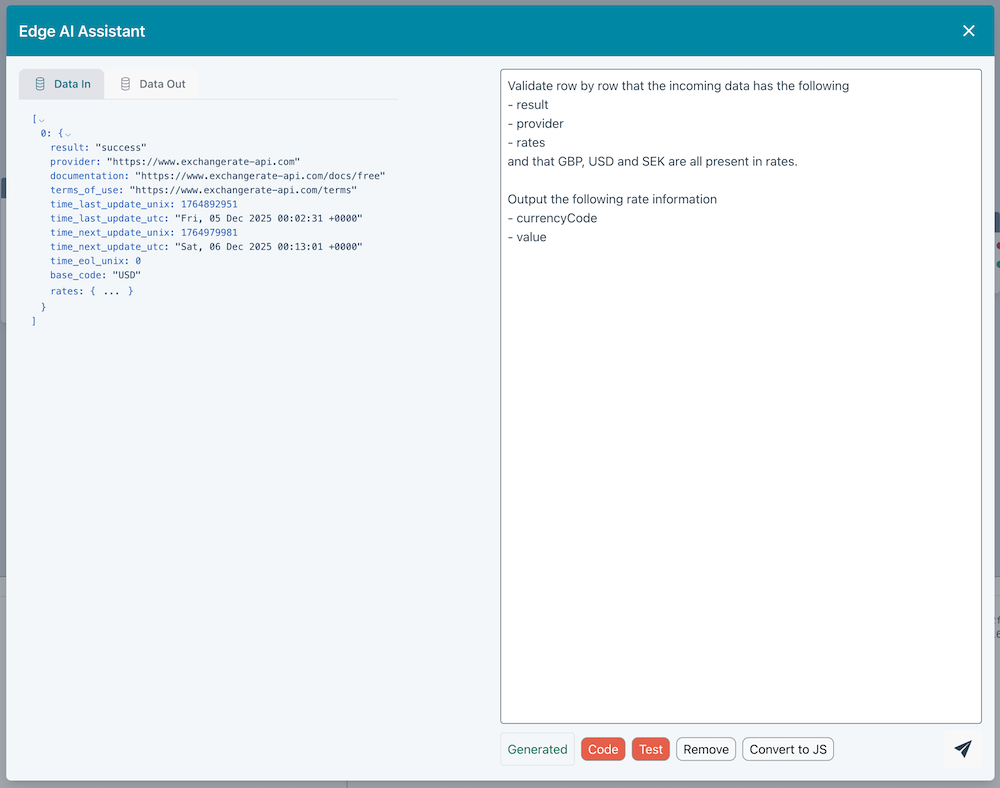
You should provide a clear prompt like the one shown in the above image. If you don't need validations then don't mention them.
You press the send icon to generate everything. A test will automatically be run and the results displayed in the left column in the Tests passed and Tests failed tabs.
Prompt tips
When executing your prompt, Ziggy provides the background context and the edge data that is currently on the edge.
You will typically want to mention output and validate/validation.
If the Assistant does not do a good job first time, you can refine your prompt and try again. It will automatically run the test but you can also press the Code button if you are familiar with Javascript.
Errors
By default, the Assistant will split validations into passed and failed groups. However, if you want the Flow to fail when an error is encountered, you should say something like throw an error if.....
Validations
You can explicitly tell the Assistant how you want to validate. Generally, there are two types of validation
- Detailed validates each row of data on the edge and splits into passed and failed rows. The passed rows will be output. You should explicitly mention that you want row by row validation or provide some other instruction as in the above screenshot
and that GBP, USD and SEK are all present in rates., which implicitly checks multiple values. - Global checks the data as a whole (see the above example).
Below is another example flow that demonstrates this in more detail.
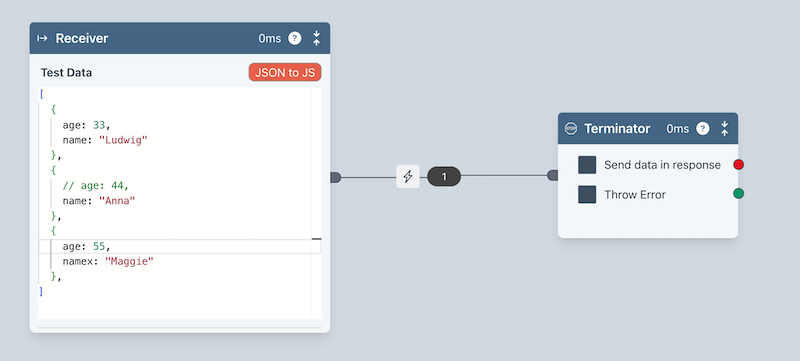
You can see we have some simple test data. Two of the records have bad data.
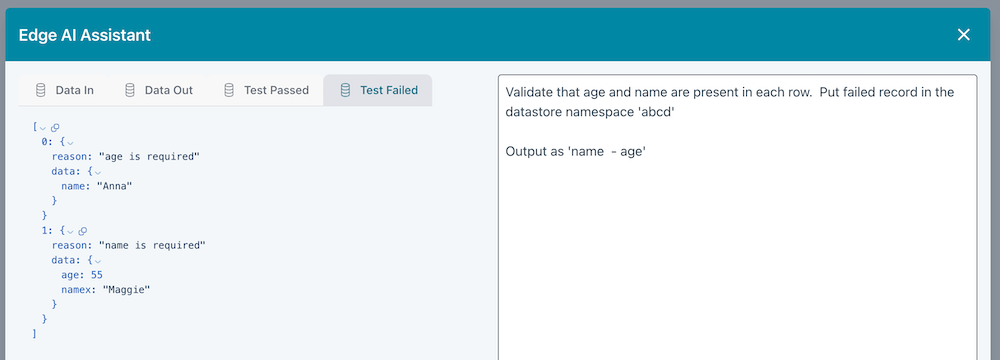
ageis commented out for Annanamehas the wrong key name (namex)
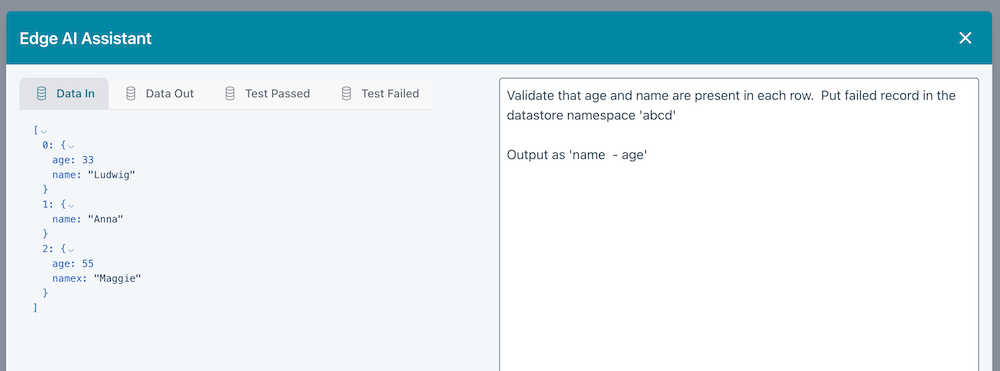
If we bring up the AI Assistant and press Test we have
Data In
This is the data that came into the edge
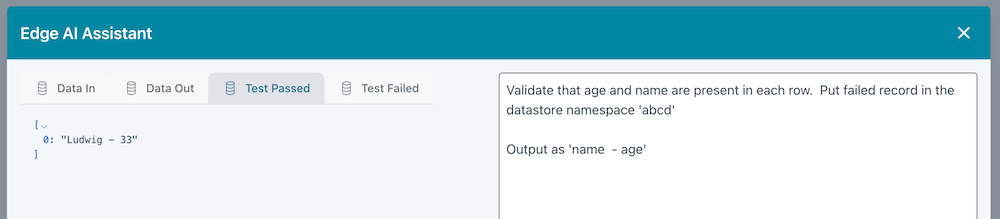
Test Passed
You can see only one record validated correctly
Test failed
Here you can see the two failed records and the reason for failure.
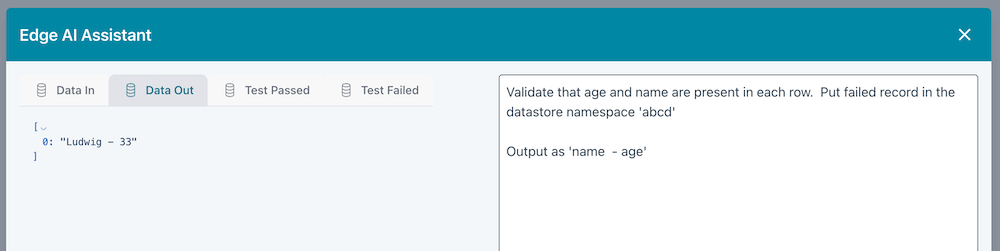
Transformed Data
In our prompt, we specified Output as 'name - age'.
When you step past the edge, you can see this tabs populated with the correctly transformed data for any records that validated successfully.
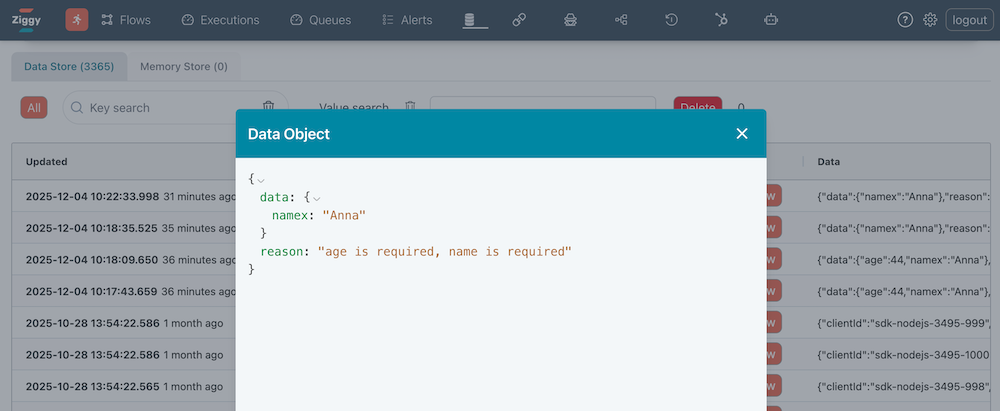
Data Store
Notice in the above prompt, we said Put failed records in the datastore namespace 'abcd'.
This will insert failed validations in the data store browser under the namespace abcd. You can then access this later within this flow or other flows however you like.
There's more information about the Data Store here.
Convert to JS
If you ever want to switch to using a Javascript block instead of the AI Assistant, you can press the Convert to JS button.
This inserts a new Javascript block into the flow with the same logic that was generated by the AI Assistant.
You should be aware that you will have the following return statement as the AI Assistant can handle validations. Subsequent blocks should work with passed and failed.
return { o0: { passed, failed } }